
The AI Power-Worker Series ③ Building a Slack Bot: A Bot That Sends Deadlines and Reports Automatically
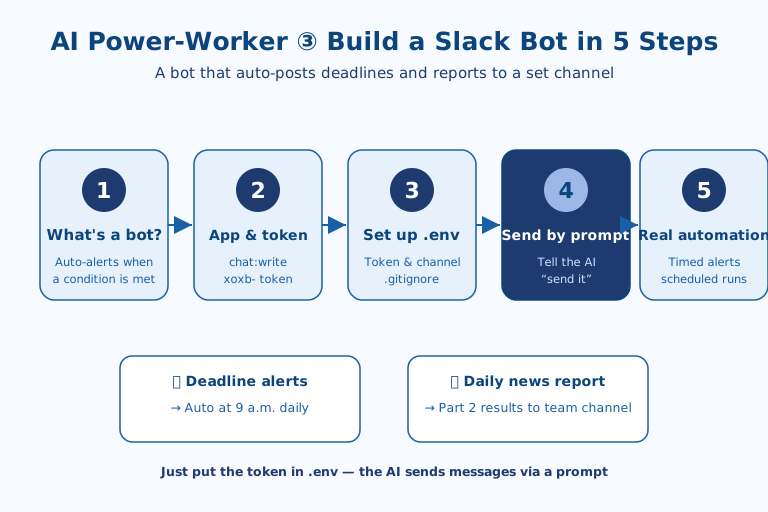
A Slack bot is a little helper that automatically posts messages — like deadline alerts or daily reports — to a designated channel on your behalf, and you can build one in five steps even without knowing code: ① why you need a bot, ② create a Slack app and issue a token, ③ set up .env, ④ send messages via a prompt, and ⑤ put it to real use. Since it applies the same "keys in .env, connection via prompt" method from Part 1 directly to Slack, once you set up a recurring alert just once, it runs hands-free.
1. Why Do You Need a Slack Bot?
A Slack bot is a program that automatically sends a message when a defined condition is met, taking over the alerts a person used to handle by hand every time. It's not a chatbot you talk to directly in chat, but more like an errand-runner instructed to "send this message to this channel in this situation."
In a work setting, it's used like this:
- Deadline alerts — automatically post "2 deadlines today" to the responsible channel at 9 a.m. every day
- Daily reports — post the competitor-news summary you gathered in Part 2 to the team channel each morning
- Task-completion alerts — automatically send a "done" message when data collection or backup finishes
In short, a Slack bot is an automatic assistant that makes the system proactively notify you of "the things you used to miss because you forgot to check."
2. Creating a Slack App (Bot) and Issuing a Token
For a Slack bot, you create an app on the Slack API page, grant the bot permission to send messages, and install it to your workspace — at which point a token is issued. This token plays the role of the "API key" you learned about in Part 1.
The steps are as follows:
- On the Slack API page, click "Create New App" to create an app (choose From scratch).
- Under "OAuth & Permissions," add
chat:writeto the bot permissions (Bot Token Scopes). - Install it via "Install to Workspace," and a Bot User OAuth Token starting with
xoxb-is issued. - Go into the channel where you'll send messages and invite the bot (in the channel, type
/invite @botname).
The issued xoxb- token is essentially the bot's access pass, so don't post it anywhere public.
Why You Should Split Bot Tokens Rather Than Grow Them
Adding only the single chat:write scope in this step isn't incidental — it's the principle. Unlike a human account, a bot token lives unattended around the clock, so if it leaks, the instant defenses a person relies on (logging out, changing a password) don't apply. That makes minimizing "what this bot can actually do," scope by scope, essentially the only real safeguard. Bolt file-read, channel-management, and user-lookup permissions onto a bot that merely posts messages, and the moment that token leaks the blast radius widens from a single alert to the entire workspace.
As uses pile up, splitting bots beats fattening one token. Build the deadline-alert bot, the report bot, and the deploy-alert bot as separate apps with separate tokens, and if any one of them misbehaves or leaks, the rest keep running untouched. It looks tedious early on, but the cost of narrowly dividing them from the start is far lower than the cost of later untangling "wait, how far can this one token actually reach?" once your bots have multiplied. Scope minimization and bot separation are two faces of the same principle: keep the blast radius small for when something goes wrong.
3. Setting Up `.env`
Save the issued bot token and the channel to send to in the .env file in your project folder. It's exactly the method covered in Part 1.
SLACK_BOT_TOKEN=xoxb-your-issued-token
SLACK_CHANNEL=#team-channel-name
Then add .env to .gitignore so the token doesn't leak out. Once you've separated it this way, in the next step you only need to instruct the AI to "send messages using the token in .env."
4. Sending Messages via a Prompt
Once the keys are ready, hand the actual sending code off to an AI like Claude Code via a prompt. Describe what to send and to which channel, and the AI will produce code that reads the token from .env and sends the message to Slack. For example, you'd request:
Using SLACK_BOT_TOKEN from .env, write code that sends a nicely formatted
list of today's deadlines to the SLACK_CHANNEL channel,
with the title "Today's Work Briefing ☀️."
Don't write the token in the code — read it from .env.
By spelling out "what to send + which channel + read the token from .env" like this, the bot posts the message to the designated channel. Once you've confirmed it works, you can reuse it for various alerts by just changing the content to send.
Why That "Read the Token from .env" Line Really Earns Its Place
The prompt's final line — "Don't write the token in the code; read it from .env" — looks like a throwaway, but it precisely blocks the spot where things go wrong most often in practice. Ask an AI simply to "write code that sends a message to Slack," and the model tends to produce the shortest answer, which means hardcoding the token string it can see right in front of it. Commit that code as-is and the token lives forever in your git history; flip the repo to public and the whole bot passes into someone else's hands. That one line of prompt shuts the mistake down at the source.
The bigger lesson: in AI coding, safety isn't secured by "inspecting the generated code afterward" but by "nailing it down in the instructions up front." Because an AI only attends to what it's told to, requirements like secret management, error handling, and retries are far more reliable when written into the prompt as conditions from the start than when bolted on during a late review. Moving from a prompt that states only "what to build" to one that also states "which constraints to honor" is the practical line separating a toy script from a work bot that runs every day.
5. Putting It to Real Use and Going Further
Connect this bot to the news monitoring from Part 2, and it becomes an automatic report that delivers a competitor-news summary to your team's Slack every morning. Just carry over the previous installment's output, as in: "Send the news summary I built in Part 2 via the Slack bot at 9 a.m. every day."
Schedule this to run automatically at 9 a.m. on weekdays.
When it runs, build a competitor-news summary and send it to the Slack channel,
and when it's done, print "Sent" to the console.
Once you hand off scheduled execution (a scheduler) too, the alerts arrive on time without anyone turning anything on. That said, since automatic sending involves a token and permissions, it's safer to check the results yourself the first few times before handing it over to automation. In the next installment, Part 4, we'll build a "work dashboard" that gathers these alerts, news, and metrics onto a single screen.
The Real Trap of Automated Alerts: When Silence Is the Malfunction
The risk beginners notice last in automatic sending isn't a wrong alert — it's an alert that never arrives. When the report that used to land at 9 a.m. goes quiet one day, people tend to read it as "nothing to report today." In reality, the bot may be dead — from an expired token, being kicked out of the channel, an API outage, or a stalled scheduler — with no one the wiser. The paradox is that the more trust an alert automation earns, the more dangerous its silence becomes. That's why the habit the body of this guide recommends — "check the results yourself the first few times" — isn't mere warm-up; it's closer to learning by eye what signals the bot leaves behind when it fails.
In everyday practice this bites especially hard where deadlines and reporting cluster at fixed times, because a "9 a.m. report" becomes the reference point for the whole workday — and when that alert quietly goes missing, the entire team's judgment drifts. The fix is simple: add one more condition to the prompt so the bot signals not only on success but also on failure, sending something like "report generation failed" to an admin's DM or a separate channel. In the end, a work bot's quality is judged less by "does it run well when things go right" and more by "does it tell you when things go wrong."
References: Slack API Documentation · Claude Code Official Documentation

AI & tech,
read in depth
Beyond the headlines — into the context and the structure
AGI Soon As Possible · asapai.co.kr