
The AI Power-Worker Series ④ Building Your Own Work Dashboard: Scattered Info on One Screen
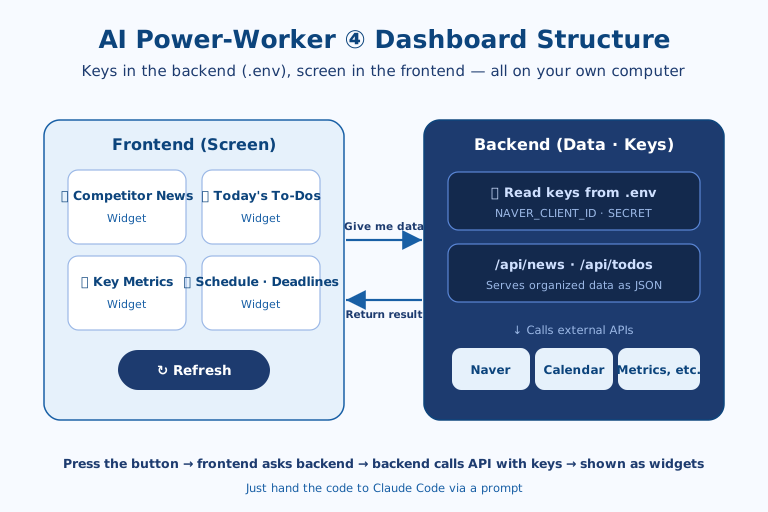
Instead of running each automation you built in the previous installments (news monitoring, Slack alerts, and so on) separately every time, you build "your own work dashboard" that gathers them onto a single screen, where one button press shows you the latest state. Rather than scheduled execution (cron), you build it as a small local web app with a backend (data collection + key storage) + frontend (the screen) structure, in five steps: ① why frontend + backend, ② design the widgets to include, ③ build the backend, ④ build the frontend, and ⑤ run and extend it. Since it extends the same "keys in .env, connection via prompt" principle from Part 1, you don't have to write any code yourself.
1. Why a "Frontend + Backend" Structure?
If you build the dashboard as a single static HTML page, your API keys are exposed directly in the browser (the frontend). So you divide the roles: the backend handles calling external services with the keys, and the frontend handles the screen. It's a structure that advances the "keys in .env" principle from Part 1 one step further.
The operating flow is as follows:
- You press the refresh button on the screen (the frontend).
- The frontend asks the backend on your computer, "Give me data."
- The backend uses the keys in
.envto call external APIs like Naver and fetch the data. - The backend returns the organized result to the frontend, and the screen draws it as widgets.
Dividing it this way, the keys stay only in the backend (.env) and only the results are shown on screen, which is safe. Everything runs inside your own computer and nothing leaks out.
Why this split matters especially for beginners
This two-layer split is not just a developer convention; it is a design that is "safe even when you make a mistake." The less code you write yourself, the less instinct you have for where an API key belongs, so it's tempting to just paste it into the HTML wherever it's convenient. The problem is that the moment you do, the key is exposed by nothing more than the browser's developer tools, a "view page source," or even a screenshot. Even a key with a free quota, like the Naver Search API, can be drained by someone calling under your name, or lead to account penalties, if it leaks.
Placing a backend layer in between means the browser only sends the request "give me data," while the actual key exists solely inside the server process on your own computer. In other words, no matter who opens the screen, the key physically never reaches it. The structure itself blocks one of the most expensive mistakes a beginner is likely to make. This principle makes an even bigger difference later, when widgets multiply and you end up handling several API keys at once.
2. Designing What to Include in the Dashboard
Before building any code, decide what you want to see on one screen, in "widget" units first. A widget is a single small information card within the dashboard. Writing down, for each widget, "what data, from where, and how to fetch it" makes the next step easier.
Frequently used widget candidates are as follows:
- Competitor news — display the Naver Search API results you built in Part 2 directly as a card
- Today's to-dos — display by entering them directly or reading a memo file
- Key metrics — a one-line summary of the numbers you check daily, like visitors and revenue
- Schedule and deadlines — display imminent items from a calendar API or a deadline list
It's best to start small with one or two widgets at first, then add more as you get comfortable. The core is a layout where "you only need to look at this one screen every morning."
Why you write the widgets down first
The advice to define your widgets in advance is not just a tidiness habit; it is a practical mechanism that determines the quality of the result when you hand work to an AI. If you tell a tool like Claude Code only "build me a dashboard," the AI guesses on its own what to include, and that guess usually diverges from your actual work. Conversely, if you spell out the widget list — "5 competitor news items, today's to-dos, one line of visitor count" — the data source and API endpoint each widget needs get organized automatically. In other words, the widget list becomes the list of /api/... endpoints the backend has to build.
One more point worth raising for practitioners is the realism of the data source. Metrics like visitors and revenue are scattered across GA, in-house databases, or spreadsheets depending on the company, so the difficulty of connecting an API varies widely. That's why, rather than wiring up all four at once, it's better to attach the competitor-news widget first (the Naver Search from Part 2), where the API is already prepared, and finish one full cycle. Once you have a single working widget in hand, the rest becomes a matter of copying and extending the same pattern.
3. Building the Backend (in Charge of Data and Keys)
First, build the backend that gathers the data. Instead of writing the code yourself, ask Claude Code to build "a small local server that fetches data with the .env keys and hands it to the screen." For example, you'd write:
Build a small backend server that runs only on my computer. (Python FastAPI)
Using NAVER_CLIENT_ID and NAVER_CLIENT_SECRET from .env, call the Naver Search API
and create an /api/news endpoint that fetches the 5 latest news articles about "Burger King."
Don't write the keys in the code — read them from .env, and return only the titles and links as JSON.
When you request this, the AI reads the keys from .env, calls the Naver API, and builds server code that serves the organized result at the /api/news endpoint. Each time you add a widget, just add one more endpoint, as in "Also create an /api/todos that serves a to-do list."
Why that one prompt is so specific
Short as the prompt above looks, it actually packs in every condition the backend needs. "Runs only on my computer" scopes it so it isn't exposed to the outside; "(Python FastAPI)" pins down the tech stack so the AI doesn't pick a different framework each time. "Don't write the keys in the code — read them from .env" is a safeguard that re-confirms Part 1's security principle inside the prompt itself. The final "return only the titles and links as JSON" narrows the response format so the frontend later receives clean data that's easy to work with.
What makes this structure powerful is that extending it amounts to adding a sentence. When you need a new widget, instead of learning new code you grow one endpoint by saying "also create /api/todos." The backend thus becomes a chest-of-drawers structure where endpoints accumulate, and each drawer maps one-to-one to a single widget. One caveat, though, is the call limit of free APIs. The Naver Search API has a daily call cap, so if you set the auto-refresh interval discussed below too short, you can burn through the quota quickly.
4. Building the Frontend (the Dashboard Screen)
Once the backend serves the data, you build a screen that draws that data nicely. You hand this off via a prompt too. Ask it to call the endpoints the backend created and arrange them as widgets.
Build a dashboard screen in HTML that calls the /api/news from the backend I just made and displays it.
- A "Refresh" button at the top that re-fetches the latest data when pressed
- Show news as cards, where clicking a title goes to the original article link
- Arrange the cards in a grid, cleanly, in a dark-navy tone
This gives you a dashboard where a single button press re-calls the backend and refreshes the screen. To add more widgets, just describe the layout in words, as in "Also add a to-do (/api/todos) widget on the right."
5. Running It and Going One Step Further
Finally, start the backend server, then open the dashboard screen at a localhost address in your browser — and you're done. You can ask Claude Code how to run it too, and it'll tell you the command, usually a single line.
Tell me how to run this backend on my computer.
And after running it, tell me which address (localhost) to go to in the browser
to see the dashboard.
With the server running, go to the localhost address you were given and the dashboard appears, where the refresh button lets you see the latest state anytime. If you'd like it to refresh automatically at set intervals while it's running, just add a single line: "Make the screen refresh automatically every 5 minutes." As you add widgets one by one, you complete "your own power-worker dashboard" — the single screen you start each workday with.
The limits of this approach, and how to judge them
This dashboard is, above all, a personal tool that "runs on your own computer." When the server is off, the screen stops too, and the localhost address isn't shared with anyone. That is not a flaw but an intended boundary. An individual handling company data can use it immediately without a separate server cost or a security review, and even if something goes wrong, the blast radius is confined to your own laptop. Conversely, if you need an always-on dashboard the whole team looks at together, this approach doesn't fit; that becomes a different tier of work requiring separate deployment and access-permission management.
Another thing to keep in mind is that this structure does not entirely replace scheduled execution (cron). The dashboard is a pull model that "pulls in the latest when you look," so if you don't open the screen, nothing happens. In contrast, push-style automation like the Slack alerts from an earlier installment — which pushes to you when a change occurs — remains valid. So the wise combination is a division of roles between the two: push urgent events that need an immediate response as alerts, and pull the comprehensive overview you skim each morning into the dashboard. The screen you built in this installment corresponds to the starting point of that morning routine.
References: FastAPI Official Documentation · Naver Search API Documentation · Claude Code Official Documentation

AI & tech,
read in depth
Beyond the headlines — into the context and the structure
AGI Soon As Possible · asapai.co.kr