
Summarizing YouTube and Long Videos with AI in 5 Minutes: How to Extract Only What Matters
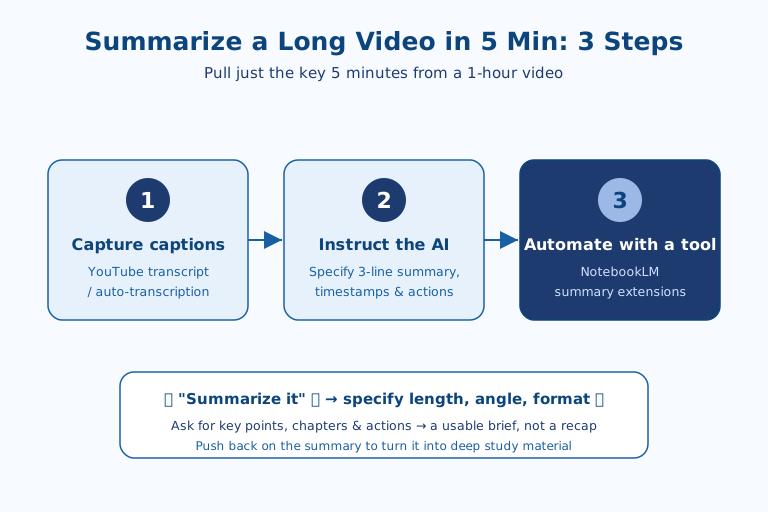
To summarize a long video with AI, you capture its captions, instruct the AI to summarize them in a specific format, and optionally automate the whole thing with a dedicated tool. Nobody has time to watch a one-hour lecture or meeting recording from start to finish. With AI, you can pull a key summary, timestamps, and even action items in just a few minutes by working from the captions. The process has three steps: ① capture the captions or transcript, ② instruct the AI to summarize, and ③ automate with a tool. The crucial part is spelling out *what* to summarize and *in what format* — that's how you get a ready-to-use brief instead of a vague plot recap.
Why a Video Summary Is Really a Caption Summary
One misconception is worth clearing up first. It's easy to assume the AI "watches" the video, but what most summarization tools actually read is the caption text, not the screen. That distinction matters because caption quality determines summary quality. A video with inaccurate captions, or none at all, will never yield a good summary no matter how capable the model is.
Long videos have uneven information density — the five minutes you actually need are scattered across an hour. AI reads the captions (text) and distills only the essentials, so you can quickly decide whether the video is worth watching and grab the key points fast.
It's especially powerful for talk-heavy videos like lectures, seminars, meetings, and interviews. Without listening to the whole thing, you can receive the conclusions and supporting evidence in structured form. The flip side is that when the crucial content lives on screen rather than in speech — cooking, repair, or design tutorials, for instance — a caption-only summary misses it. We return to this limitation later.
STEP 1 — Capture the Captions or Transcript
The raw material for a summary is the text of what's spoken. On YouTube, click "Show transcript" below the video to expand the captions and copy them, or pull the text with a caption-extraction tool. For your own recordings, first generate the text using an automatic captioning (transcription) feature.
Whenever possible, capture captions with timestamps. That way, in the next step you can organize the summary by "what was covered at which minute."
There's a subtlety that especially trips up non-native viewers. YouTube captions come in three flavors: creator-authored, auto-generated, and auto-translated. Their quality differs sharply. Creator-authored captions are the most accurate; auto-generated captions frequently mangle jargon and proper nouns; and captions machine-translated from another language carry the highest risk of mistranslation. ASAP's recommendation is clear: if the source video is in English but you want a summary in another language, paste the full original-language captions and ask for the summary in your language, rather than feeding the AI an already-translated caption track. Letting the AI handle translation and summarization in one pass removes one layer where errors accumulate.
STEP 2 — Instruct the AI to Summarize
Paste the captured captions into ChatGPT or Claude and give specific instructions about the format you want. The key is to specify length, perspective, and format — not just a vague "summarize this."
Below are the captions from a video. Organize them in this format:
1) A 3-line key summary
2) Key points per chapter + timestamps
3) Three actions I can apply right away
[paste captions]
By requesting "key points, chapters, and actions" as separate pieces, you get a brief you can use at work rather than a plot recap. Just change the perspective and you can repurpose the same captions as lecture notes, meeting minutes, or content ideas.
Unpacking why this prompt works widens what you can do with it. Splitting the format into three parts hands the AI a skeleton for its output in advance. Without a skeleton, the model tends to just list sentences that stand out in the captions; with one, each item forces a distinct mode of thinking — summarize, then structure, then translate into action. That's why merely changing the perspective changes the character of the result. Need meeting minutes? Swap the three items for "decisions, owners, deadlines." Need study notes? Use "concepts, examples, points of confusion." There isn't one correct prompt; the real skill is a knack for translating the deliverable you want into a set of items.
STEP 3 — Automate with a Tool
If copy-pasting every time is tedious, use a dedicated tool. Google's NotebookLM lets you upload videos and documents, then ask source-grounded questions and get summaries; YouTube summary browser extensions and services generate automatic summaries from just a link.
Find and summarize only the part of this video about "pricing policy."
Also give me the timestamps of the segments you based it on.
Tools make "ask questions after summarizing" easy. You can zero in on a single topic as if you'd watched the whole thing.
Choosing among tools calls for some judgment, though. A tool like NotebookLM that shows its sources (the original captions) alongside the summary is more trustworthy, because you can trace whether the summary is actually grounded in what was said. By contrast, a YouTube summary extension or service that just spits out a result from a link is convenient but often hides which segments it drew on, making verification hard. From ASAP's perspective, the selection criterion is a single question: can you check the summary against the source? Favor tools where that check is possible, and reserve convenience-first tools for a rough first pass.
What AI Summaries Miss, and What to Do About It
This workflow isn't a cure-all. Knowing three limitations is what keeps you from trusting a summary blindly.
First, information the captions never capture can't appear in the summary. Numbers on a slide, a speaker's expression, a demonstrated gesture — anything not spoken aloud drops out entirely from a caption-based summary. For such videos, use the summary to sketch the outline, then check the key segments yourself.
Second, long captions can be read carelessly in the middle. Models tend to reflect the beginning and end well while blurring the middle, so if the captions are very long, it's safer to summarize chapter by chapter and then combine.
Third, a summary is an interpretation, not the original. Especially when auto-translated captions are involved, a mistranslation can ride into the summary and read as fact. That's why the final "push back and ask" step is not merely deeper study but a fact-checking mechanism.
Turning the Summary Into the Start of a Conversation
A summary is the beginning, not the end. By pushing back on the summary you receive — asking things like "What's the evidence for this claim?" or "What's the counterargument?" — you can turn a single video into deep study material. Factoring in the mistranslation and omission risks noted above, this back-and-forth plays two roles at once: it broadens your understanding and checks whether the summary distorted the original.
The same approach applies to meeting recordings, online lectures, and long interviews. Once you master the flow of "capture captions → format-specified summary → questions," long videos stop being a burden.
References: Google NotebookLM · Claude Code Official Documentation

AI & tech,
read in depth
Beyond the headlines — into the context and the structure
AGI Soon As Possible · asapai.co.kr