
The AI Power User ⑤ — Building Shortcuts: Turn Repetitive Commands Into a Single Double-Click
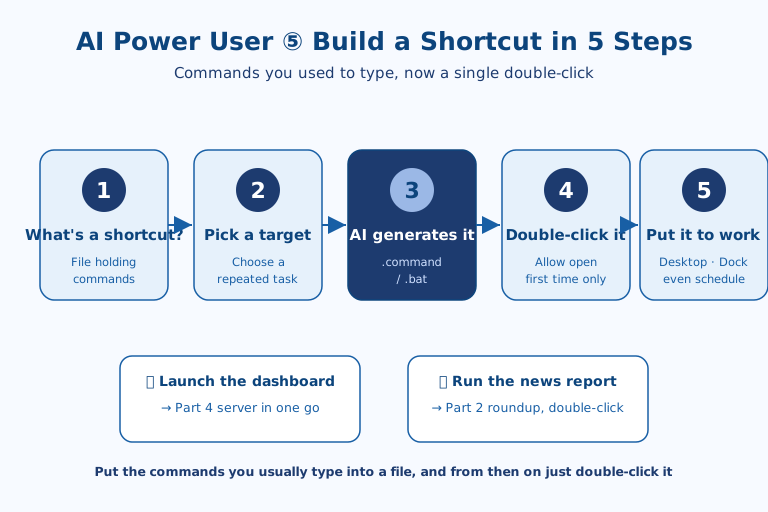
Instead of typing the same commands every time you launch a dashboard or run a news report, you create a "shortcut launcher file" that runs with a single double-click. You don't need to know how to code — just ask an AI to make it. We'll cover this in five steps: ① what a shortcut launcher file is, ② deciding what to automate, ③ having AI build it, ④ running it with a double-click, and ⑤ putting it to work. On macOS it's a .command file and on Windows it's a .bat file, but the principle is the same, so the tasks you built in earlier installments can now run with a single tap of your finger.
1. What Is a Shortcut Launcher File?
A shortcut launcher file is a small text file that holds several lines of commands and, with a single double-click, runs them in order. On macOS the extension is .command, and on Windows it's .bat. Inside, it simply contains the same commands you'd normally type into a terminal.
The reason you need one is simple. Without a shortcut, you have to open the terminal every time, navigate to your project folder, and type a long command exactly right. If you can't remember the command, you have to dig up a note and copy-paste it. Bundle that repetition into a single file, and from then on you just double-click it. No memorizing commands, no wrangling the terminal directly.
Why a Single Double-Click Changes Your Productivity
What a shortcut really saves isn't a few seconds of typing. What it truly saves is the psychological threshold you have to clear before you can even start the task. Opening the terminal, recalling which folder it was, and remembering the exact command are each short steps, but together they trigger the "I'll do it later" that leads to procrastination. What makes us put off repetitive work is usually not the time it takes, but this friction of getting started.
Double-click execution drops that friction to essentially zero. The moments where you gave up because you couldn't remember the command, or kept failing over a single typo, simply disappear. Especially for tasks you repeat several times a day, what you save is not so much the sum of the time as the total amount of decision fatigue. When you no longer have to recall "how do I launch this again," you can spend that mental bandwidth on the actual work. This is precisely why shortcuts are so powerful for practitioners who can't work with code: the lower your barrier to entry, the more you feel the effect of removing that friction.
2. Deciding What to Automate
First, think about the "tasks you repeat the exact same way every time" and pick candidates to turn into shortcuts. The more often you reach for a task, the bigger the payoff.
Common shortcuts include the following:
- Launch a dashboard — a shortcut that runs the backend server you built in Part 4 and automatically opens the browser
- Run a news report — a shortcut that runs the competitor-article roundup from Part 2 in one go
- Back up files — a shortcut that copies a specific folder to a set location
- Open your work environment at once — a shortcut that launches your frequently used folders, apps, and sites simultaneously
3. Having AI Build the Launcher File
Once you've decided what to build, you hand the actual file off to an AI like Claude Code via a prompt. Describe which commands you want to run with a double-click, and the AI will create a launcher file suited to your operating system. For example, you'd ask like this:
Make me a .command file for Mac that launches my dashboard server
and opens the screen in a browser with a single double-click.
- Move to the project folder, then run the server
- After 1 second, automatically open the localhost address in a browser
- Set the execute permission so it runs directly on a double-click
When you spell out "the task to run + make it double-clickable" together like this, the AI creates the file containing the commands and even sets the execute permission. If you're on Windows, just change it to "make it a .bat file instead of .command."
4. Running It With a Double-Click
On macOS, you open the finished shortcut file just as you'd open an app — double-click it, and the commands inside run in order. One caveat: for security reasons, macOS makes you grant permission manually the first time, and after that it opens with just a double-click.
The first-run procedure is as follows:
- Right-click the file and choose "Open."
- If an "unidentified developer" warning appears, click "Open" once more.
- From then on, just double-clicking runs it right away.
If you use it often, place the file on your desktop or in the Dock and it becomes a true "shortcut" you can reach with a single click.
5. Putting It to Work — and One Step Further
A single shortcut lets you connect tasks like the Part 4 dashboard and the Part 2 news report with one finger. Turn each task into its own shortcut and put them on your desktop, and every morning two double-clicks finish your prep for the day. Below is an example of a .command file used in practice.
#!/bin/bash
cd /Users/yourname/Desktop/yourproject
echo "Launching the dashboard…"
( sleep 1; open "http://localhost:8830/" ) &
python3 -m http.server 8830
That's all there is to it — you just store the commands you'd normally type. Going one step further, if you ask "make this shortcut run automatically every morning at 9," you can connect it to scheduled execution as well. Shrinking repetition into a double-click, and the double-click into a schedule — that's how a power user automates.
Applying This as a Practitioner — and Its Limits
If you want to carry the macOS examples above straight into a Windows-centric office environment — as most offices are — don't stop at swapping the extension to .bat. A .bat file doesn't need #!/bin/bash on its first line, and the way you change folders and run programs follows Windows syntax. The good news is that this difference, too, is something you can hand to an AI by simply saying "make it for Windows," so a practitioner never has to memorize the syntax. What matters far more is your ability to put "what exactly you repeat" into precise words. The quality of a shortcut hinges on the specificity of your prompt.
At the same time, it's safer to be clear about the limits. First, a shortcut merely runs the commands you stored, so if the original command was wrong or a folder path changes, it fails silently. Second, as the "unidentified developer" warning on macOS shows, executable files are security-sensitive by nature. Casually double-clicking a .command or .bat from an unknown source is dangerous; shortcuts should only ever be used for "files whose contents you know." Third, this approach automates commands, not judgment. For work where the target differs day to day, specifying the conditions each time beats a plain double-click. A shortcut delivers its greatest value when you focus it on "work that is reliably repetitive."
References: Apple Support — Terminal User Guide · Claude Code Official Documentation

AI & tech,
read in depth
Beyond the headlines — into the context and the structure
AGI Soon As Possible · asapai.co.kr