
How to Use Higgsfield (2026): From Sign-Up to Your First Video
What is Higgsfield? An image and video AI suite under one subscription
Higgsfield is an AI creation service run by the San Francisco company Higgsfield, and it bundles its own tools with outside AI models under one subscription. The official help center defines it as "an AI-native creative suite" (article dated July 29, 2026).
Its own tools include the Soul image model, Soul ID, which learns a face from photos once and reuses it, Cinema Studio for direct camera control, and Marketing Studio for product ad videos. Outside models such as Seedance, Kling, Veo, Sora 2 and Nano Banana are available on the same screen, and Higgsfield Audio handles voiceover, voice cloning and translation.
Higgsfield says it has 25 million users. The official Nano Banana Pro prompt guide page describes the service as "trusted by 25 million creators," which is the company's own figure.
You own what you generate. Section 4.4 of the Terms of Use says the company does not claim ownership of inputs or outputs and does not restrict commercial use. Under the same terms, inputs and outputs can be used to train Higgsfield's models (Enterprise contracts excepted), and outputs can carry invisible AI-generation markers.
Is there a Higgsfield app? No, the Play Store and App Store apps are fakes
Higgsfield is a web-only service with no mobile or desktop app, and on a phone you use it by opening higgsfield.ai in the browser. The official platforms article in the help center (September 5, 2026) states this plainly.
> "Higgsfield has no mobile apps and no desktop app: the platform works in your browser at higgsfield.ai on any device, including your phone. Any downloadable app that presents itself as Higgsfield is a copy, no matter where it's listed or what it promises."
When ASAP searched on October 8, 2026, the Korean App Store listed lookalike apps such as "Highfield Genjutsu AI" and "Highfield Video AI," and Google Play listed two apps named "Higgsfield AI." None is published under the Higgsfield company name, so by the official definition all of them are unofficial.
The table below is the complete list of official channels. If you found Higgsfield at an address or in an app not listed here, treat it as unofficial.
| Official channel | Address | Purpose |
|---|---|---|
| Website | higgsfield.ai | The only place to sign up, generate, pay and manage a subscription |
| API console | open.higgsfield.ai | API keys, usage and billing for developers |
| API docs | docs.higgsfield.ai | Developer documentation |
| MCP | mcp.higgsfield.ai/mcp | Connects AI agents such as Claude and ChatGPT (setup at higgsfield.ai/mcp) |
| Discord | discord.com/invite/higgsfield | Official community |
The official article also lists how to spot a copy. If the address is not higgsfield.ai, if somewhere else asks for your Higgsfield password, or if somewhere else takes payment, it is not Higgsfield. Higgsfield does not sell lifetime plans, transferable accounts or subscriptions through resellers, and it warns that offers of "free Higgsfield" elsewhere are a common way to collect passwords and payment details. Higgsfield access bought on another site or app cannot be refunded or activated.
ASAP thinks the first place new users trip is not the tool but the front door. On Naver, the Korean query for "Higgsfield app" is searched 1,030 times a month (Naver Search Ad keyword tool, checked October 2026), and with no official app, those searches end at lookalike apps. Higgsfield says it cannot guarantee what happens to prompts, personal data or payment details entered outside its official channels. If you want an icon on your phone's home screen, open higgsfield.ai in the browser and use the browser's "Add to Home Screen" option.
How to sign up for Higgsfield: Google, Apple, Microsoft or email
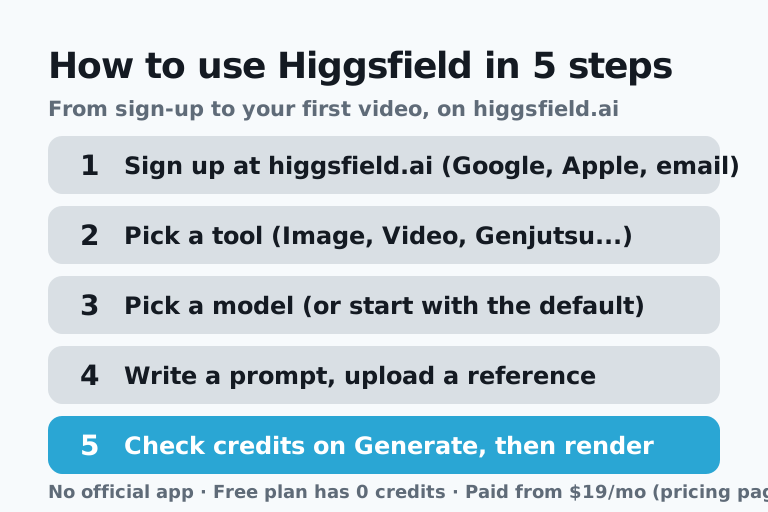
Signing up for Higgsfield requires only clicking Sign up at higgsfield.ai and choosing Google, Apple, Microsoft or email, and it is open to users 18 and over (or the age of majority where you live). The help center's account article (July 29, 2026) lists these steps.
- Open higgsfield.ai in a browser. Phones use the same address.
- Click Sign up.
- Choose Google, Apple, Microsoft or email.
- If you chose email, enter the 6-digit verification code sent to your inbox to finish.
Three things are worth knowing first. The email on an account cannot be changed later, so using a different email means creating a new account. Each email can hold only one account. If you signed up with Google or Apple, there is no separate Higgsfield password, so sign in the same way each time.
After signing up, the avatar menu at the top right shows your remaining credits and Manage Account. Manage Account (higgsfield.ai/me/settings) holds Subscription, Usage and Promocode.
How to use Higgsfield: 6 steps to your first image or video
The official way to make a first result on Higgsfield is a 6-step process: choose Image or Video in the top menu, pick a model, write a prompt and click Generate. The help center's first generation article (July 30, 2026) lays it out as follows.
- Choose Image or Video in the top menu. The Korean interface shows the same two menus in Korean.
- Choose a model or feature. If you are unsure, start with the default.
- Describe the scene you want in a prompt.
- Upload a reference image if the model supports it.
- Set duration, aspect ratio and resolution.
- Check the credit cost shown on the Generate button, then click it. The result is saved both in the section where you made it and in Assets.
The official example video prompt is "A close-up of a dancer mid-spin on a rooftop at golden hour, slow motion, cinematic lighting, shallow depth of field." The image example is "Fashion editorial portrait, studio lighting, high detail, magazine photography."
Generation usually takes a few minutes. Images are faster, and video takes longer at higher resolutions. The official beginner guide (June 20, 2026) recommends testing at 720p first and changing one thing at a time. Credits are not returned if you simply dislike a result, but if a generation fails, the credits usually come back automatically within a few minutes (some models excepted).
Everything you make is saved privately in Assets (higgsfield.ai/asset/all). From there you can continue with Upscale, Color Grading, Relight and Turn to video.
Higgsfield's main tools: which one to use for each job
Higgsfield's tools are split by purpose, and the official help center points to Cinema Studio for cinematic video, Marketing Studio for product ads and AI Influencer for a consistent AI character. The table below follows the official article "Which Higgsfield tool should I use?" (August 1, 2026), with ASAP adding rows for basic image and video generation, Genjutsu and Apps.
| What you want to do | Tool | Worth knowing |
|---|---|---|
| Make an image from a prompt | Image | Pick a model such as Soul or Nano Banana |
| Make a short video from a prompt or photo | Video | Pick a model such as Seedance or Kling |
| Replace only a person or object in an existing video | Genjutsu | Takes one 4 to 30 second clip |
| Cinematic video with your own camera moves | Cinema Studio | Clips up to 30 seconds in 4.0 |
| Keep the same face across clips | Cinema Studio + Soul ID | Train a character once from photos |
| Ad video from a product URL or photo | Marketing Studio | UGC, unboxing, tutorial and TV spot formats |
| A consistent AI influencer | AI Influencer | Keeps a virtual person looking the same |
| Preset effects such as retouching or face swap | Apps | Collected at higgsfield.ai/apps |
| A workflow that chains several models | Canvas | Node board, real-time collaboration, templates |
| Hand a whole project to one chat | Supercomputer | Paid plans only |
Higgsfield Genjutsu: replace only the people or objects in a video
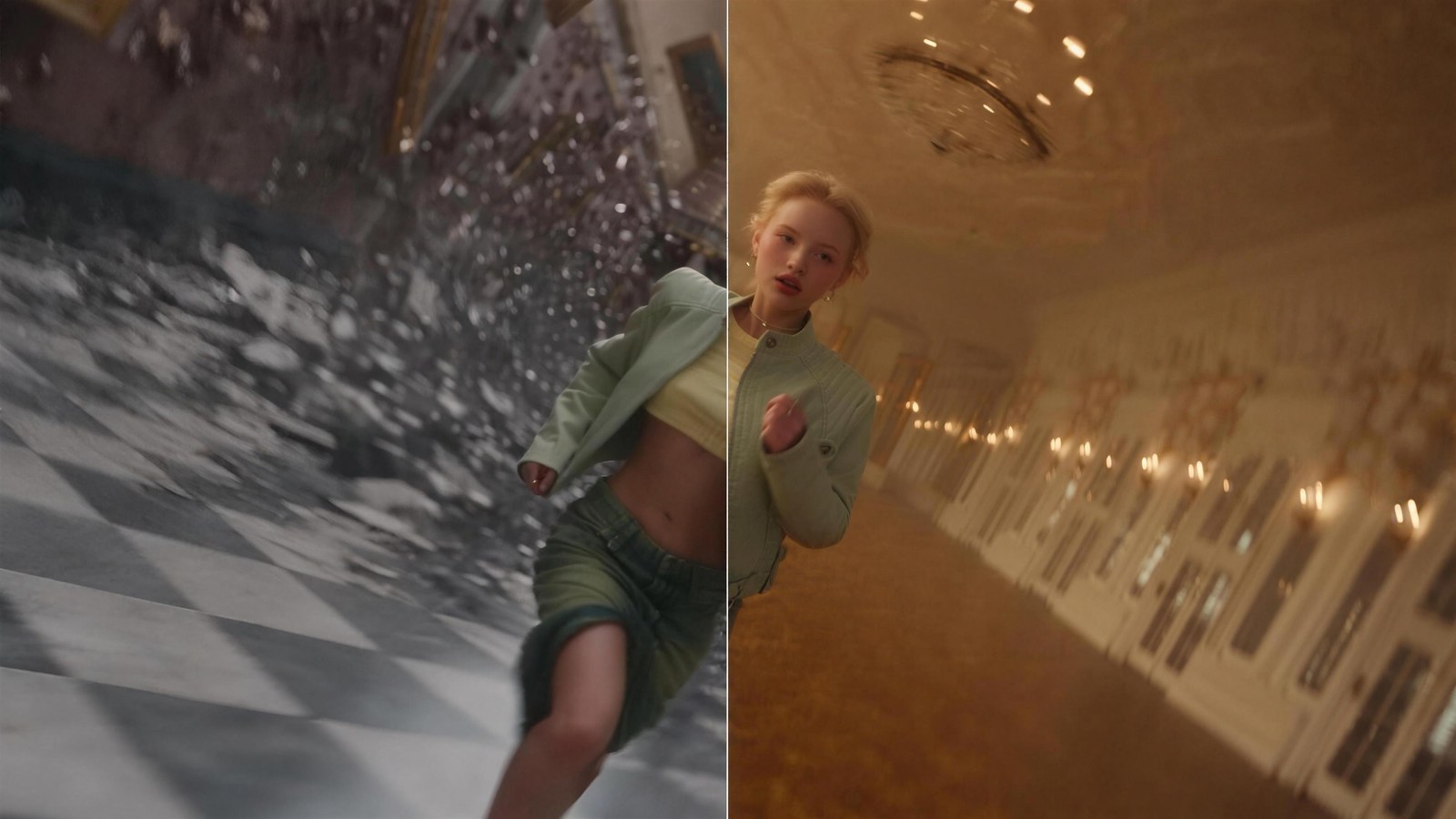
Genjutsu is a Higgsfield tool introduced on the official blog on August 31, 2026, and it keeps a video's original motion while rebuilding only part of it. The official blog puts it as "Genjutsu takes an existing video and rebuilds part of it," and the home page features it as "Genjutsu Restyle."
It has two features. Motion Transfer applies the movement from a source video to a new person or scene, and Object Swap replaces only the elements you choose while leaving the rest of the footage as it was. It accepts both live-action and AI-generated footage, and the official blog notes that presets alone can finish the job without a prompt.
| Item | Official setting |
|---|---|
| Video input | 1 clip, 4 to 30 seconds |
| Reference images | Up to 30 per generation |
| Prompt | Optional |
| Presets | 30+ |
| Output resolution | Up to 1080p |
| Cost for 15 seconds | 480p 40 credits (about $2.00), 720p 104 credits (about $5.20), 1080p 144 credits (about $7.20) |
The blog says these prices were verified in September 2026, and both features cost the same. On the pricing page as of October 8, 2026, the Plus and Ultra plans include free 720p Genjutsu generations, 3 with annual billing and 2 with monthly billing, while Starter includes none.
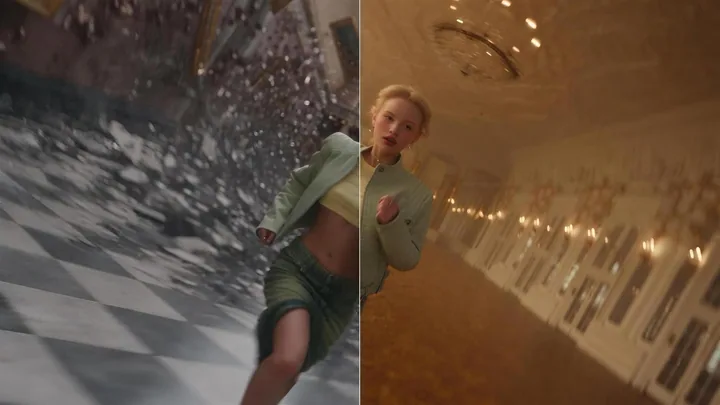
For the full steps and prompts behind trends that swap the people in famous videos, such as STORM and Hotel Lobby, see [How to use Higgsfield Genjutsu: swapping the person in a video](/en/ai-video-person-swap-guide/).
Higgsfield Cinema Studio: set the camera and lighting yourself
Cinema Studio is Higgsfield's cinematic video tool that controls camera movement, multi-shot scenes and physics-aware motion, and according to the help center (August 1, 2026) version 4.0 opens by default. A selector at the top switches to earlier versions from 2.0 to 4.0.
| Version | Main features |
|---|---|
| 2.5 | Up to 3 Soul Cast characters, color grading |
| 3.0 | Up to 9 references, 7 genres, speed ramps such as slow motion |
| 3.5 | Claude Chat AI Director, reusable characters, locations and props (Elements), team collaboration |
| 4.0 | Runs on Seedance 2.5, Director's Panel, up to 50 references, clips up to 30 seconds |
Version 4.0 adds more than 50 color palette templates and 6 lighting presets, and it generates sound effects, dialogue and background music together with the video. The official advice is to pair it with Soul ID to keep the same person across clips. A generation can be blocked with the message "May contain protected content" when it includes a real person's face or copyrighted characters.
Higgsfield Apps: preset effects for photos and videos
Higgsfield Apps is a collection of effect tools at higgsfield.ai/apps that turns an uploaded photo or video into an ad, a trend clip or a retouched result once you pick an effect. The official page calls them "One-click AI effects," and as of October 8, 2026 they are grouped into 8 categories: Professional, Enhance & Style, Face & Identity, Video Editing, Ads & Products, Games & Characters, Extras and Trending Templates.
Popular apps include:
- Shots: makes 9 different shots from one photo.
- Angles 2.0: shows the same photo from another angle.
- Relight: changes the position, color and brightness of the lighting.
- Skin Enhancer: gives skin a natural texture.
- Face Swap, Recast: swap a face in a photo or a character in a video.
- Expand image: extends a photo beyond its edges.
- Virality Predictor: predicts how far a video's hook will spread before you post.
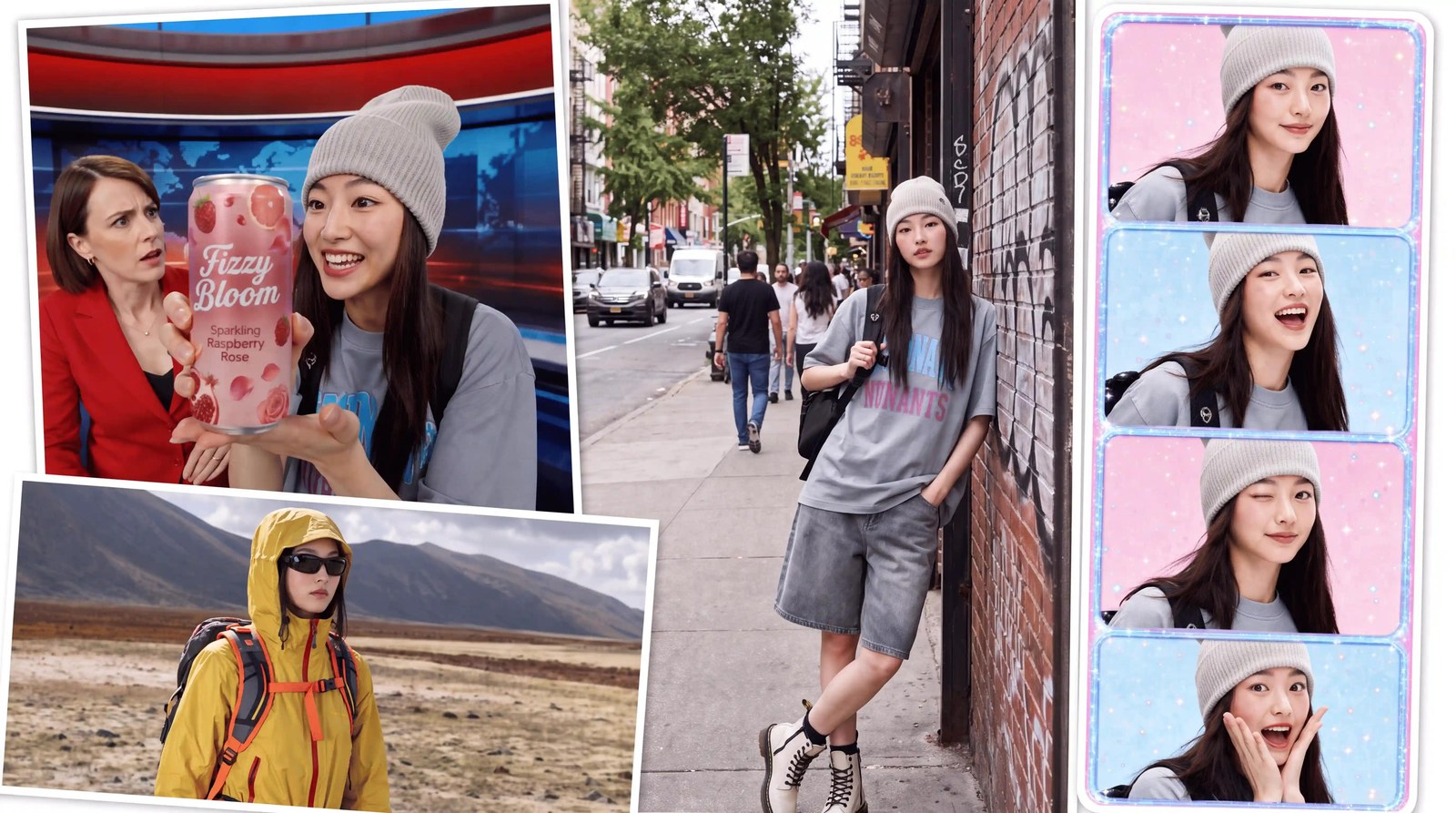
A different feature shares the name. Apps inside Supercomputer lets you build a web app from a prompt and publish it at "name.higgsfield.app," and the people who use that app generate with their own credits. According to the official blog (July 9, 2026), you can build up to 20 per day. Neither has anything to do with an app-store "app."
How to pick a Higgsfield model: start with Soul, Nano Banana and Seedance
The best starting point for beginners, according to Higgsfield's help center, is Soul or Nano Banana for images and Seedance for video. Models are grouped into families across three categories, image, video and audio, and choosing a family automatically uses its latest version (official model guide, August 1, 2026).
| What you want | Recommended family | Credit example (pricing page, 2026-10-08) |
|---|---|---|
| Fashion or cinematic images, consistent characters | Soul | Soul 2.0 at 0.12 per image |
| Fast images, reference control | Nano Banana | Nano Banana Pro at 2 per image (4 at 4K) |
| Images with text, accurate color | GPT Image | 1 per image |
| Long, complex prompts | Seedream | 1 per image |
| Storyboards, connected frames | Popcorn | 1.5 per image |
| Natural human motion in video | Seedance | Seedance 2.0 720p about 22 per 5 s |
| Longer clips, multiple shots, cinematic video | Kling | Kling 3.0 720p about 7 per 5 s |
| Camera moves and VFX presets | Higgsfield DoP | DoP Lite 720p about 3 per 3 s |
| Fixed first and last frames | Wan | Wan 3.0 720p 8.75 per 5 s |
| OpenAI and Google video models | Sora, Veo | Sora 2 720p about 10 per 4 s, Veo 3.1 about 40 per 4 s |
For audio, the official picks are Seed Audio for voice, music and effects in one pass, Eleven when emotional delivery matters, and Seed Speech for multiple languages. The same 5 second 720p clip costs about 7 credits on Kling 3.0 and about 22 on Seedance 2.0, more than three times as much by our calculation. Model access also depends on the plan: Starter opens only selected models and features, with Seedance limited to 2.0 Fast and 2.0 Mini, and every model and feature opens from Plus upward.
Can you use Higgsfield for free? 0 credits, a few models, a watermark
Higgsfield is usable without a paid plan, but the free plan has 0 credits, opens only a few models and adds a Higgsfield watermark to every result. The official plans article says access "is limited to a small set of models and doesn't include credits," and there is no trial period.
On the pricing page comparison table as of October 8, 2026, the image models included in the Free column are Nano Banana Pro and FLUX.2 Pro, and the free plan runs one video and one image job at a time. Neither the official docs nor the pricing page mention daily or monthly free credits. Upgrading does not remove the watermark from results you already made on the free plan, so you have to generate them again.
The official sources disagree on commercial use. The pricing page comparison table (October 8, 2026) marks the free plan "Commercial use: Not included," while the help center's ownership article (August 2, 2026) says the Terms of Use do not tie commercial rights to a plan. Free results carry a watermark, so a paid plan is the safe choice for commercial work. Ways to get the most out of the free tier and past promotions are covered in [How to use Higgsfield for free](/en/higgsfield-free/).
Higgsfield pricing: Starter from $19 a month, and credits do not roll over
Higgsfield's personal plans start at $19 a month for Starter, $59 for Plus and $129 for Ultra according to the pricing page on October 8, 2026, and all prices are in US dollars before tax. Even the Korean pricing page shows dollars only, with no won prices.
| Plan | Monthly credits | Monthly billing | Annual billing (per month) |
|---|---|---|---|
| Free | 0 | Free | - |
| Starter | 270 | $19 | $19 |
| Plus | 1,200 | $59 | $47 |
| Ultra 3,000 | 3,000 | $129 | $99 |
| Ultra 6,000 | 6,000 | $250 (first payment $220) | $194 |
| Ultra 9,000 | 9,000 | $375 (first payment $310) | $270 |
Credits do not carry over. Monthly plans reset on the billing date, and annual plans reset every 30 days. Payment happens only on the website, by card (Visa, Mastercard, Amex, JCB), Apple Pay or a supported bank payment; PayPal and cryptocurrency are not accepted. Refunds are available only within 7 days of the initial purchase (or as local law allows) and only if no credits were used, and renewals are not refundable. Credit conversions by plan, how to cancel and refund conditions are covered in [Higgsfield pricing and plans explained](/en/higgsfield-pricing/).
How to write Higgsfield prompts: be specific, write in English, change one thing at a time
The first rule of a good prompt in Higgsfield's help center is "be specific." The official prompt article (July 30, 2026) builds a prompt in layers: subject, details such as looks and clothing, environment and style, adding camera and mood for video.
A video prompt reads more like a shot list than a sentence; the official wording is "A video prompt is more like a shot list than a sentence." The example in the official beginner guide shows the difference.
| Type | Example prompt |
|---|---|
| Weak | A woman walking. |
| Strong | A woman in a red coat walks through a rainy Tokyo street at night, close-up, slow motion, neon reflections on wet pavement. |
The habits the official article recommends are describing what you want in positive terms, keeping the prompt and reference images consistent, writing in English, and changing one thing at a time. It adds that Chinese-developed models such as Seedance and Kling sometimes respond better to Chinese for subtle motion. Prompt examples by situation and camera move phrasing are collected in [Higgsfield prompt examples](/en/higgsfield-prompts/).
Using Higgsfield outside the website: MCP, CLI and API
Higgsfield works outside the website through three official connections, MCP, CLI and API, which are channels for AI agents and developers rather than phone apps. Using MCP or the CLI requires an active paid Higgsfield subscription, and every generation spends credits.
| Channel | In plain terms | Requirements |
|---|---|---|
| MCP | Generate with Higgsfield inside AI chats such as Claude and ChatGPT | The only official connector URL is mcp.higgsfield.ai/mcp; paid subscription required |
| CLI + Skills | Generate from coding agents such as Claude Code, Cursor and Codex | Paid subscription required; no API key needed |
| API | Developers build Higgsfield into their own services | Keys, usage and billing managed separately at open.higgsfield.ai |
Unlimited models and the free generations included in plans apply only on the website (higgsfield.ai), not through MCP, CLI, Canvas or Supercomputer. The official docs state it directly: "MCP always uses credits."
Sources: What is Higgsfield? (Higgsfield help center) · Official Higgsfield platforms (Higgsfield help center) · Create an account and sign in (Higgsfield help center) · How do I create my first generation? (Higgsfield help center) · Which Higgsfield tool should I use? (Higgsfield help center) · Which AI model should I use? (Higgsfield help center) · How do I use Cinema Studio? (Higgsfield help center) · Meet Higgsfield Genjutsu (Higgsfield official blog) · Higgsfield Apps · Introducing Higgsfield Apps (Higgsfield official blog) · Higgsfield pricing page · How do Higgsfield plans work? (Higgsfield help center) · Watermark and how to remove (Higgsfield help center) · Who owns my generations (Higgsfield help center) · How do I write a good prompt? (Higgsfield help center) · How to make AI videos: beginner's guide (Higgsfield official blog) · What is Higgsfield MCP? (Higgsfield help center) · Higgsfield Terms of Use
Related

Higgsfield Prompt Examples: How to Write Image, Video and Camera Prompts from the Official Guides (2026)

Higgsfield Pricing Explained: Plans, Prices, Credits and Refunds
Can You Use Higgsfield for Free? The 0-Credit Free Plan and the Cheapest Way to Try It (2026)
How to Use Higgsfield Genjutsu: Swap the Person in Famous Videos Like the STORM and Hotel Lobby Trends (2026)

AI & tech,
read in depth
AGI Soon As Possible · asapai.co.kr