
The AI Power-Worker Series ② News Monitoring: Auto-Compile Competitor Trends with the Naver API
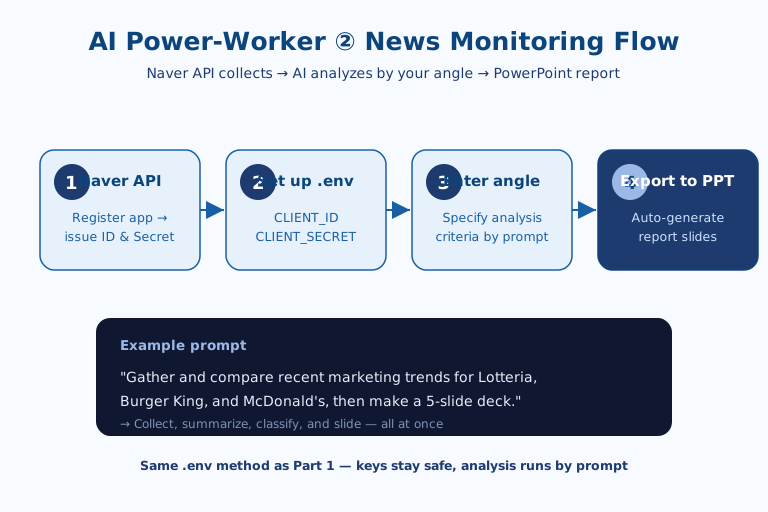
By connecting the Naver Search API to AI, you can automatically gather and analyze competitors' news trends and even produce a PowerPoint report — in four steps: ① connect the Naver Search API, ② set up .env, ③ enter your monitoring angle, and ④ export to PowerPoint. Since this applies the same "API keys in .env, connection via prompt" method you learned in Part 1, you don't have to write any code yourself. The chore of searching and compiling articles one by one, every time, can now be done with a single prompt.
Why the Bottleneck Is the "Angle," Not the "Gathering"
When you monitor news by hand, it's easy to feel that most of the time goes into searching and copy-pasting. But the real bottleneck isn't gathering — it's judgment. Search a brand name and dozens of articles pour in, but deciding which ones actually count as "marketing trends" versus mere incident coverage, and comparing three competitors by the same yardstick, demands human judgment. That's exactly why the four steps here start with an API connection and end with "entering an angle" and "structuring a deck." What you're handing to the AI isn't simple collection but the repetitive labor of re-arranging raw material into a consistent framework.
Seen this way, choosing the Naver Search API makes sense too. A large share of Korean brand and industry news accumulates inside the Naver news ecosystem, so it yields higher recall for Korean-language competitor monitoring than an overseas search API would. "What to fetch, and from where" is the first button that determines the quality of the result.
1. Connecting the Naver Search API
First, log into Naver Developers, register an application, and select Search as the API to use — and a Client ID and Client Secret are issued. The Naver Search API can query news, blogs, and web documents by search term, making it well suited to monitoring news about competitors and keywords.
The specific procedure is as follows:
- Log into Naver Developers.
- Under "Register Application," name your app and select Search as the API to use.
- Enter the environment (service URL, etc.), and a
Client IDandClient Secretare issued.
The two issued keys are essentially your access pass, so don't post them anywhere public.
2. Setting Up `.env`
Save the two issued keys in the .env file in your project folder. It's exactly the method covered in Part 1.
NAVER_CLIENT_ID=your_issued_id
NAVER_CLIENT_SECRET=your_issued_secret
Then add .env to .gitignore so the keys don't leak out. Once you've separated the keys this way, in the next step you only need to instruct the AI to "read and use the keys from .env."
3. Entering Your Monitoring Angle
With the keys ready, specify in a prompt the angle from which you want the analysis done. The key is to spell out the comparison targets, time range, and organizing criteria — not just "fetch articles." For example, you'd ask Claude Code:
Using the Naver Search API keys in .env, search the past month's news for
"Lotteria," "Burger King," and "McDonald's" separately. Then compare and
organize the three brands' marketing trends across three angles: new products,
discount promotions, and collaborations.
Read the keys from .env, and organize the source links in a table too.
By clearly giving "search targets + analysis angle + output format" like this, the AI gathers the articles via the API and then summarizes and compares them in the framework you want. Just change the angle and you can reuse it across any industry or topic.
Why the Prompt's Three Pieces Are Written Separately
Break the prompt above apart and you find three pieces: "search targets + analysis angle + output format." That separation is what drives quality. Give only the targets and the AI, unsure what to organize around, merely lists articles; add the angle and the list becomes a comparison table. The reason for nailing down three axes — new products, discount promotions, collaborations — in advance is that comparison only holds when the three brands sit in the same columns. Without axes, articles that differ brand by brand blur together and judgment actually gets harder.
Asking for the source links as a table is deliberate too. A person has to be able to trace whether the AI's summarized sentences rest on real articles, so that faulty summaries (hallucinations) can be caught. That verification path matters especially if the monitoring result becomes a report.
4. Exporting to PowerPoint
The organized content can be turned into a PowerPoint file with one more prompt. The AI generates the slides using a tool like python-pptx and creates a .pptx file.
Turn the three brands' marketing trends I just organized into a 5-slide deck.
Structure it as: slide 1 cover, slides 2–4 per-brand summaries, slide 5 overall takeaways.
By specifying a structure of cover, per-brand summaries, and takeaways, you get a presentation-ready draft right away. You can refine the detailed design in PowerPoint, and for a recurring weekly report, you just rerun the same prompt.
Going One Step Further: Regular Automatic Runs
If you'd like to receive the same monitoring every week, you can hand even scheduled execution (a scheduler) off to the AI. Ask, "Create a schedule that runs this task automatically every Monday morning," and it will register it as an operating-system scheduled task (cron, etc.). That said, since automatic runs involve keys and permissions, it's safer to check the results yourself the first few times before handing it over to automation.
Limits to Weigh Before You Put This Into Practice
This method is powerful but not all-purpose. First, the Naver Search API targets news, blogs, and web documents, so a competitor's quiet moves that never make it into press coverage (internal notices, offline promotions, and the like) won't be captured. Forget the premise that you only see what search catches, and it's easy to slip into the illusion that "I checked, so there's nothing there."
Second, the AI's summaries and comparison tables are drafts, not final judgments. This is where the earlier request for a source table pays off. In particular, articles where a brand name is a homonym or appears in an unrelated context can slip in, so a step where a person verifies a sample is needed before it becomes a report.
Third, the further you move toward automatic runs, the easier this verification step is to skip. That's why the principle of checking the results yourself the first few times before automating matters especially in practice. In the end, the value of this workflow lies not in "replacing your judgment" but in "freeing up the time to exercise it."
References: Naver Search API Documentation · Claude Code Official Documentation

AI & tech,
read in depth
Beyond the headlines — into the context and the structure
AGI Soon As Possible · asapai.co.kr